What is the app for?EnglishForLife?!
- This application serves as additional material for students who are part of our center's courses. In this application you will be able to find supplementary lessons, video-lessons, exercises where you can expect an immediate result, direct contact with our professors, the latest announcements in the form (notifications), announcements from the application calendar for the start of the lesson as well as for other events, etc.
How to use the application EnglishForLife?!
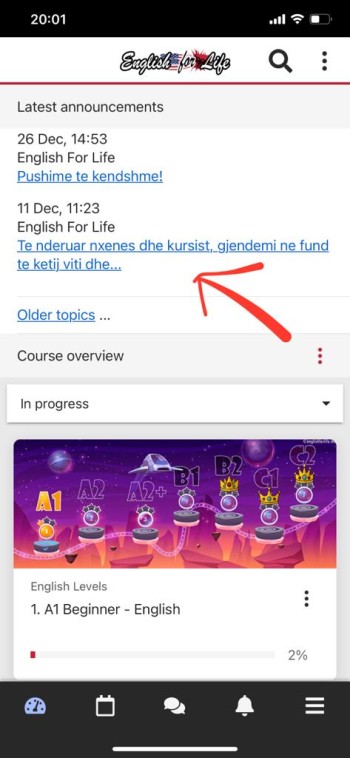
Photo 1. The photo shows the first view of the application. In the first view, you will have the logo, the part with the red arrow - the announcements of our school, which apply to all students of all courses.
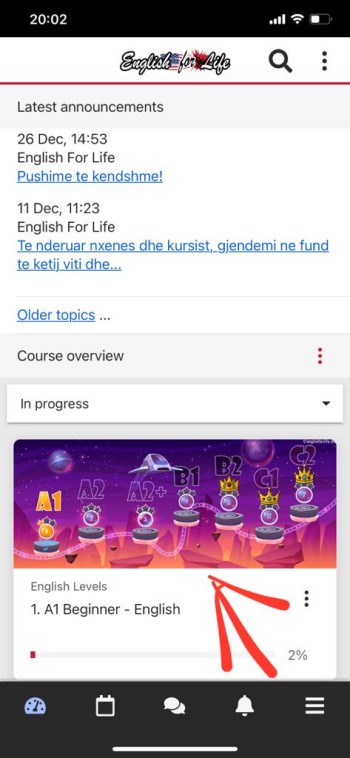
Photo 2. Here again the first page is visible - home, here we have the course in which we are registered with an arrow. If we click on the course, then the materials and exercises within that course or level will be presented to us.
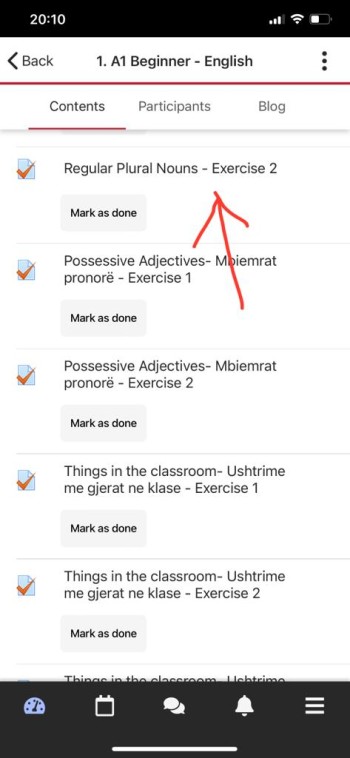
Photo 3. We have already clicked on our course and here are the materials and exercises. Click on the exercise Regular Plural Nouns - Exercise 2 (Or in any exercise you want, this exercise was done as an example for clarification).
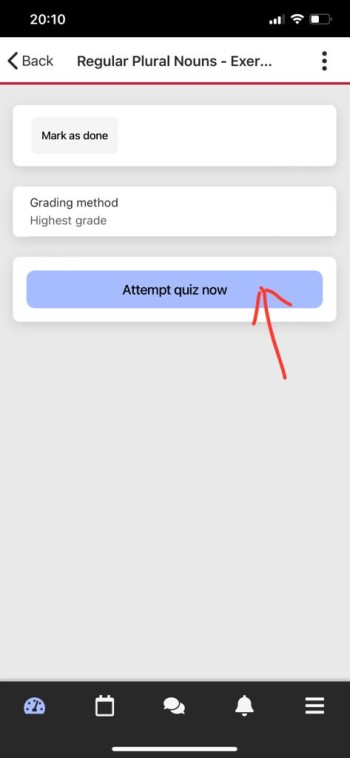
Photo 4. Attempt quiz now - means to log into the quiz or exercise immediately.
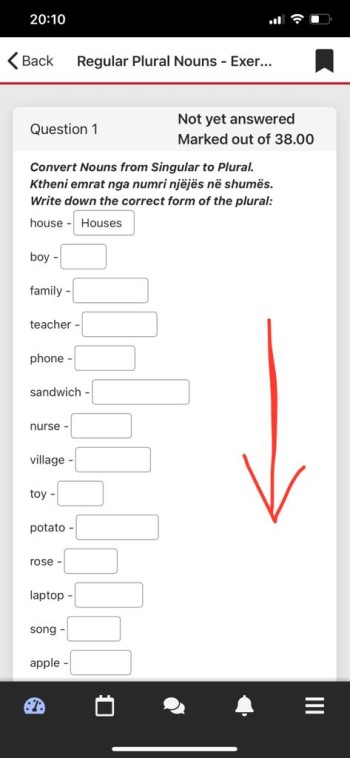
Photo 5. We see that this exercise requires filling in the words. Once they are filled you can drag the page down.
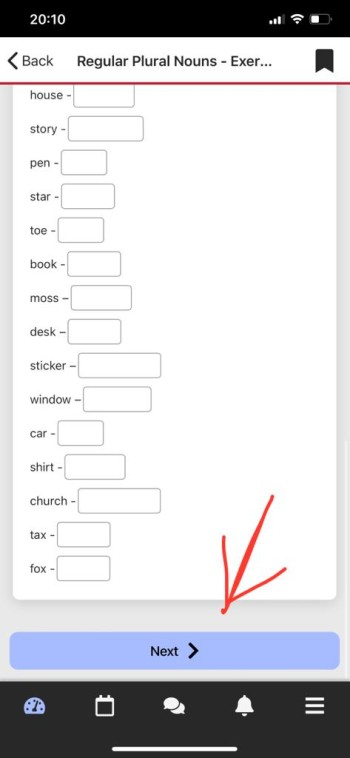
Photo 6. To finish the exercise, click Next.
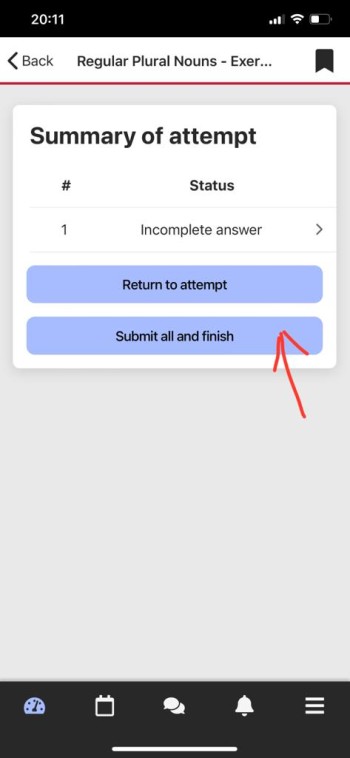
Photo 7. We click Submit all and finish that is, get it all done and send.
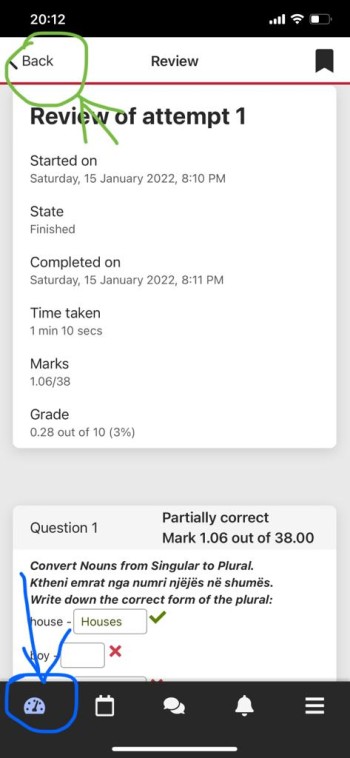
Picture 8. After clicking it Submit all and finish, you will accept the result of your exercise immediately within 1 second. Next, you'll see which sentences you've had good and which ones error. To go back now, you have two options 1. the top green arrow indicates that you can go back to other exercises (within the course you clicked on) 2. the blue arrow indicates that you will return to the home page of the application.
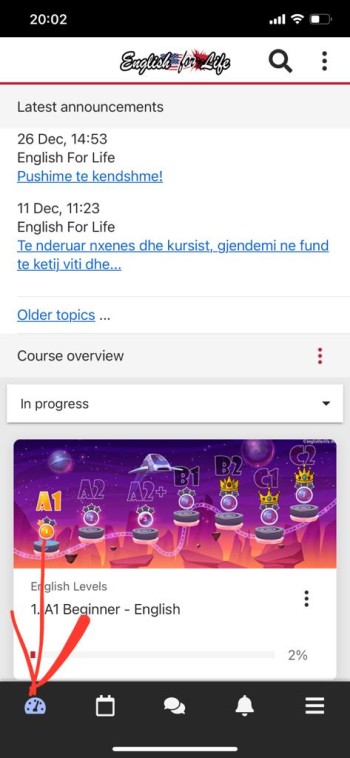
Photo 9. Here the lower part of the screen, namely the lower menu, is highlighted. In this menu we have several icons, for example the first one with the red arrow is home - the home page, so wherever you want to be in the application and you don't know how to return, just click on this icon once; then calendar, messages, notifications, and the three lines symbolize the app's settings.
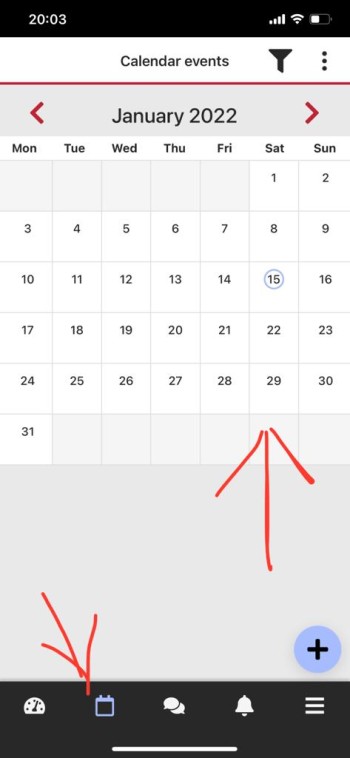
Photo 10. Here we clicked on the calendar icon. You can check the events and schedule here. It is very important that you do REFRESH the calendar page by dragging it from top to bottom and all course schedules will be presented to you and you will receive notifications from them.
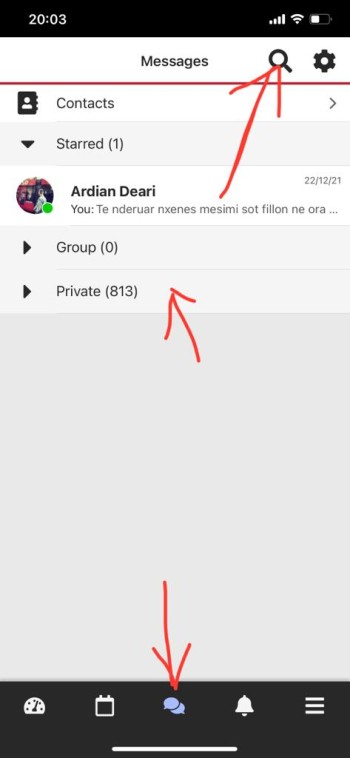
Photo 11. Here we clicked on the menu below on the icon of messages and communication. Here when you click, you can communicate with your group mates as well as with the professor. In case you can't find it, you can look for it with the magnifying glass as in the arrow above.
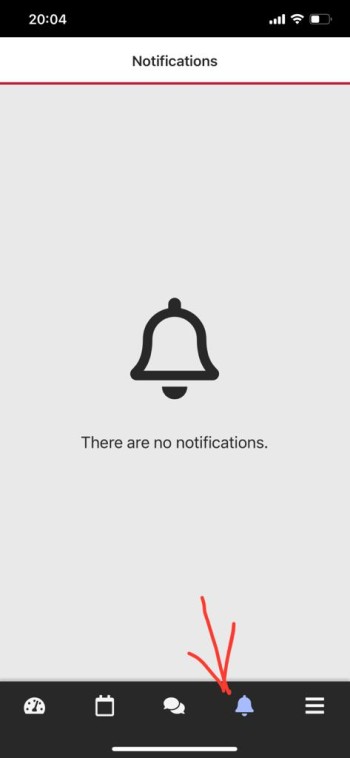
Photo 12. The next icon is the notification bell. Here you will be able to see the last notifications sent to you by the application or the professor, the last exercises, tests, assignments, etc. It is important that you allow all notifications or make notifications high priority so that you can stay up to date with our exercises.
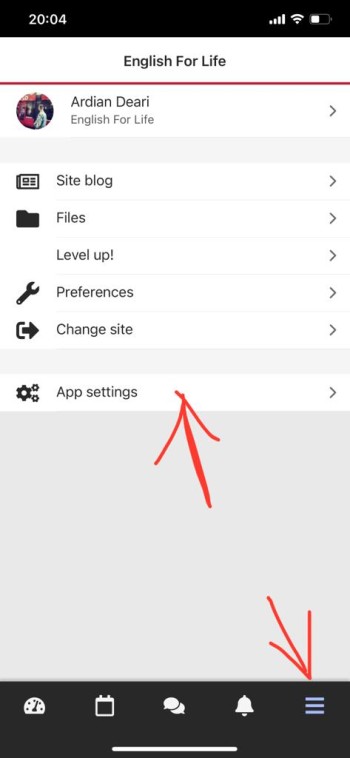
Photo 13. The three-line icon represents the settings within our application. Here you can adjust the language, color, font size, etc. For example, click on App settings
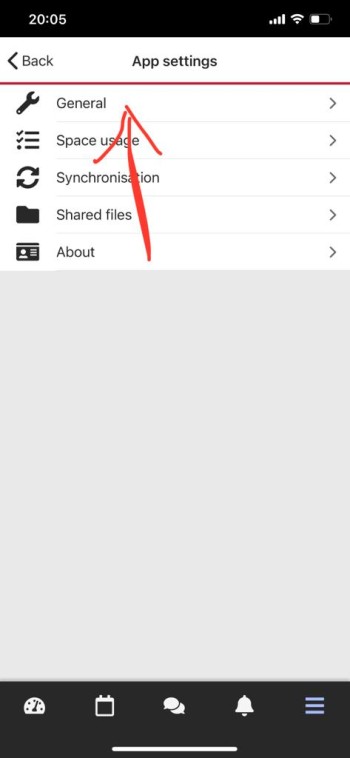
Photo 14. We click on Generale and we will be presented with general adjustments and changes we can make to the app.
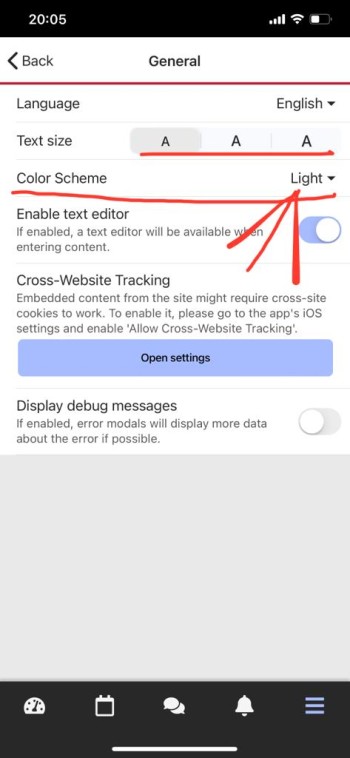
Photo 15. Here we have the language, we have underlined the size of the letters, as well as the colors. We will try to make the Dark version of the app (which is liked by many users of our app).
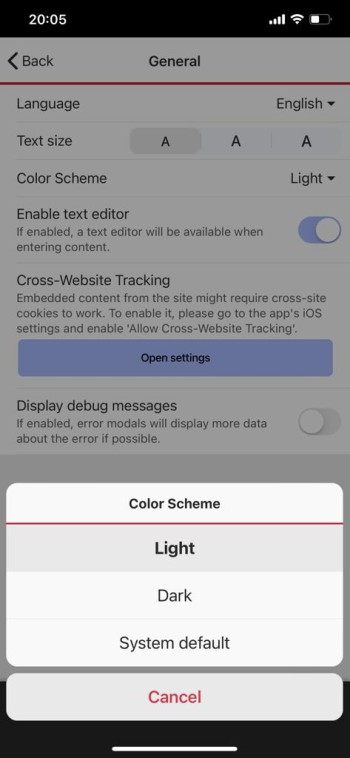
Photo 16. To make the application in the dark version, click on dinner.
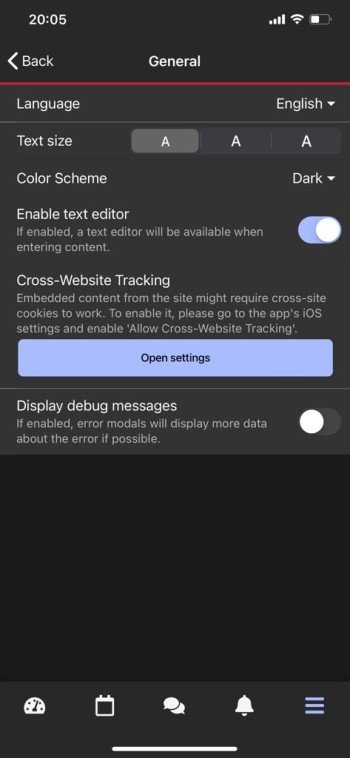
Photo 17. Here you can see how the dark version of the application looks like. Remember to return to the first page, again click on the first icon in the bottom menu and you will return to the main page.
We hope this clarification has helped you.
To get app download links EnglishForLife click here...